How to access a virtual machine in a KubeOps Cluster
Categories:
3 minute read
Requirements
Before proceeding, ensure that the following prerequisites are met:
- A KubeOps cluster with at least one master node.
- A running virtual machine in said cluster.
- The credentials of the running image within the virtual machine (username and password).
For example:
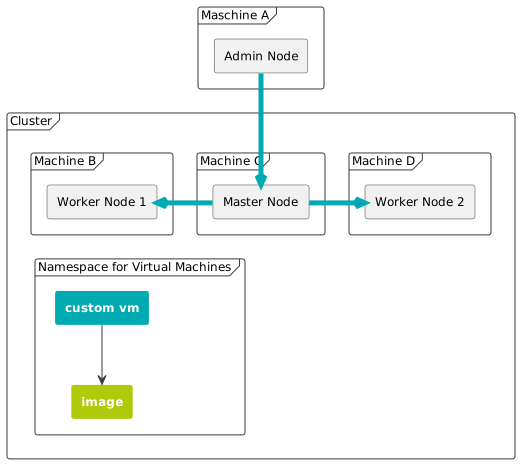
In the example shown, the custom VM is accessed via the master node**, Worker Node 1**, or Worker Node 2.
A KubeOps virtual machine is not exposed by default and therefore cannot be accessed remotely by the admin node.
Step 1 - Identify your Virtual Machine
- Log in to the master or worker machine.
- Most kubeops software requires root privileges. Switch to the root user.
sudo -i
- Identify your virtual machine by running the
kubectl get vmicommand.
kubectl get vmi -A
This command lists all virtual machine instances. Choose the IP of the desired virtual machine.
NAMESPACE   NAME         AGE   PHASE     IP              NODENAME       READY

kubevirt    [CUSTOMVM-1]   22h   Running   [192.168.16.XXX]   stackedadmin   True
kubevirt    [CUSTOMVM-2]   22h   Running   [192.168.16.YYY]   stackedadmin   True
Step 2 - Access the Virtual Machine
- Log in to the example VM remotely (e.g. using
ssh). Use the IP address from the previous step. Use the credentials of the image. Replace[USERNAME]and[IP-ADDRESS]accordingly.
ssh [USERNAME]@[IP-ADDRESS]
Step 1 - Create a Service forwarding the SSH port of the VM
The following YAML defines a Kubernetes Service that forwards the SSH port of your VM to the spec.ports.nodePort value.
The Service connects to your VM by using the selector, so make sure that the given label matches the one of your VM. Store it in a local YAML file serviceforwarding.yaml
apiVersion: v1
kind: Service
metadata:
  name: vm-ssh-forwarding
  namespace: kubevirt
spec:
  type: NodePort
  ports:
    - port: 22
      nodePort: 30226
      targetPort: 22
      protocol: TCP
  selector:
    kubevirt.io/vm: customvm # Binds directly to the underlying VM pod
Apply the Service with the following command:
kubectl apply -f serviceforwarding.yaml
To verify that the Service is connected to your VM, check the Endpoints resource in your Kubernetes cluster. The output should look similar to this:
NAME                ENDPOINTS          AGE
vm-ssh-forwarding   10.244.138.61:22   5d23h
Step 2 - Access the Custom VM
You can access the custom VM remotely from any host that has network access to the cluster machines, for example by using ssh.
- Log in to the machine.
- Identify the IP address of your custom VM by using the
kubectl get vmicommand.
kubectl get vmi -A
This command lists all virtual machine instances. Since we only have one VM installed, the output looks similar to this:
NAMESPACE   NAME         AGE   PHASE     IP              NODENAME       READY

kubevirt    example-vm   22h   Running   192.168.16.48   stackedadmin   True
To connect to the example VM remotely using ssh, use the IP address of a cluster node because the Service type is NodePort. In this example, the master node IP address is used. Also use the credentials of the running cirros image.
ssh [vm user]@[your master1 ip] -p 30226 # this port must match the one defined in your service