Welcome to our comprehensive How-To Guide for using KubeOpsVM. Whether youre a beginner aiming to understand the basics or an experienced user looking to fine-tune your skills, this guide is designed to provide you with detailed step-by-step instructions on how to navigate and utilize all the features of kubeops effectively.
In the following sections, you will find everything from initial setup and configuration, to advanced tips and tricks that will help you get the most out of the software. Our aim is to assist you in becoming proficient with KubeOpsVM, enhancing both your productivity and your user experience.
Lets get started on your journey to mastering KubeOpsVM!
1 - How to install KubeOps Virtualization (kubevirt)
This guide describes the installation of the kubevirt virtualization software.
Note
This guide requires a Compliance Enterprise license.
KubeVirt provides a powerful way to run virtual machines on top of Kubernetes, creating a unified platform for both containerized and traditional workloads. This guide walks through the essential steps for getting KubeVirt up and running using the KOSI package manager - from pulling and preparing the KubeVirt package, to creating a custom configuration file with your credentials, and finally verifying a successful installation in the kubevirt-namespace. Once these steps are complete, you’ll be ready to deploy and manage virtual machines alongside your existing container infrastructure - all within a single Kubernetes cluster.
KubeVirt is a specialized package that extends the capabilities of the KubeOps platform to support machine virtualization.
Requirements
To follow the next steps, make sure you have your credentials ready from your KubeOps.net account.
Make sure you have prepared the following points:
A KubeOps cluster with one master node.
Access to the master node with root privileges.
Step 1 - Download KubeOpsVM
Log in to the master node remotely. For example, using ssh.
If necessary, switch to your cluster user. If you forgot your cluster user, check your cluster-values.yaml.
su <your linux username>
Log in to KOSI using your KOSI username.
kosi login -u [USERNAME]
Search for available software packages by using the KOSI package manager.
In this case, we restrict the search to KubeOps virtualization using kubeops-vm.
kosi search --hub kubeops-vm
Log in to the local container registry on the master node using podman. Replace <master-ip> with the IP address of your master node.
The package is named kubeops/kubevirt:2.2.0_Beta0 and lies on the hub kubeops-vm. Download the package using the kosi pull command and save it with the desired file name. In this example, the file is saved as kubevirt-2.2.0_Beta0.tgz. The -r flag sets the source registry the container images are pulled from, and -t sets the local target registry the images are pushed to.
Before installing the package, create a YAML configuration file. Save the following content in the same directory as the package file and name the file kubevirt-values.yaml.
Replace [your username] and [your harbor cli secret] with your KOSI username and your Harbor CLI secret.
The harbor-values must be adapted to your harbor instance.
apiVersion:kubeops/kubeopsctl/enterprise/beta/v1deleteNs:falselocalRegistry:truepackages:- name:kubevirt-managerenabled:truevalues:standard:namespace:kubevirthostname:kubeops-vms.localnodeport:30733ingressName:nginxadvanced:{}- name:kubevirtenabled:truehub:kubeops-vmvalues:standard:namespace:kubevirtimagePullSecretCred:registry:127.0.0.1:30002/kubeopsuser:[your username]password:[your harbor cli secret]# must be CLI Token from harborkubevirtobject:spec:configuration:developerConfiguration:logVerbosity:virtLauncher:2virtHandler:3virtController:4virtAPI:5virtOperator:6featureGates:- ExpandDisks- CPUManager- ExperimentalIgnitionSupport- HypervStrictCheck- Sidecar- HostDevices- Snapshot- VMExport- HotplugVolumes- HostDisk- ExperimentalVirtiofsSupport- DownwardMetricsFeatureGate- Root- ClusterProfiler- WorkloadEncryptionSEV- VSOCK- DisableCustomSELinuxPolicy- KubevirtSeccompProfile- DisableMDEVConfiguration- PersistentReservation- VMPersistentState- MultiArchitecture- AutoResourceLimitsGate- AlignCPUs- VolumesUpdateStrategy- VolumeMigration- InstancetypeReferencePolicyuseEmulation:falsecdiobject:spec:config:insecureRegistries:- registry.kubeops.netscratchSpaceStorageClass: rook-cephfs # Optional; Default:rook-cephfs- name:harborenabled:falsevalues:standard:namespace:harbor# optional, default is harboringressClassName:nginx# optional, default is nginx; set to "traefik" to route via Traefikharborpass:"password"# required: set password for harbor accessdatabasePassword:"Postgres_Password"# required: set password for database accessredisPassword:"Redis_Password"# required: set password for redis accessexternalURL:http://10.2.10.11:30002# required, the ip address and port, from which harbor is accessable outside of the clusternodePort:30002# requiredhostname:harbor.local# requiredharborPersistence:persistentVolumeClaim:registry:size:40Gi# optional, default is 40GistorageClass:"rook-cephfs"#optional, default is rook-cephfsjobservice:jobLog:size:1Gi# optional, default is 1GistorageClass:"rook-cephfs"#optional, default is rook-cephfsdatabase:size:1Gi# optional, default is 1GistorageClass:"rook-cephfs"#optional, default is rook-cephfsredis:size:1Gi# optional, default is 1GistorageClass:"rook-cephfs"#optional, default is rook-cephfstrivy:size:5Gi# optional, default is 5GistorageClass:"rook-cephfs"#optional, default is rook-cephfsadvanced:# All values from https://artifacthub.io/packages/helm/harbor/harbor/1.8.1#configuration are overwritable
Step 4 - Install KubeOps-VM
Install the KubeVirt package using the prepared configuration file you created.
Verify the installation by checking the pods in the kubevirt namespace.
kubectl get pods -n kubevirt
The installation is complete when the status of all pods show the status “Running”.
For example:
Troubleshoot
If you receive an ImagePullBackOff error, recreate the image pull secret
If the kubevirt-manager pod is in ImagePullBackOff and reports an error similar to the following:
Unable to retrieve some image pull secrets (kubeops-harbor-secret)
create the required registry secret in the kubevirt namespace:
2 - How to create and deploy a Custom Virtual Machine using KubeOps
In this guide, we describe how to set up and deploy a custom virtual machine for a Kubernetes cluster. The software KubeVirt is used for this.
Note
This guide requires a Compliance enterprise license.
Creating custom virtual machines on top of Kubernetes is a powerful way to unify containerized and traditional workloads. In this introductory guide, you’ll learn how to set up your KubeOps cluster to deploy a Cirros-based VM using KubeVirt, from checking off a few key prerequisites to preparing and applying a concise YAML configuration file.
Whether you’re a seasoned Kubernetes user looking to expand your virtualization capabilities or just getting started with hybrid infrastructure, these steps will walk you through everything from generating the custom VM file to verifying its running status and accessing it over SSH. By following this process, you’ll have a seamlessly integrated virtual machine environment in no time - ready to support your application needs.
Requirements
Make sure you have prepared the following points:
A KubeOps cluster with at least one master node and root privileges.
To follow this guide, use the following values to configure the custom virtual machine. If you wish, you can adjust the values yourself. Make sure that the adjusted values are applied accordingly everywhere.
Filename (VM configuration file)
custom-vm.yaml
Virtual Machine Label
kubevirt.io/vm: customvm
Virtual Machine Name
customvm
Virtual Machine Namespace
kubevirt
Virtual Machine Memory
64M
Additional Information
For users to understand the most basic functionality of KubeVirt, one must know about the following fundemental concepts:
KubeVirt offers different methods to engage with the virtual machines through specialized custom resources (CR). On the lowest level is the VirtualMachineInstance (VMI) which represents the stateless instance of a virtual machine. These VMIs can be managed by higher level resources, such as VirtualMachine (VM), which realizes a stateful VMI that can be stopped and started while maintaining its data and state.
The manifests for these resources contain a multitude of parameters that surpass the needs of most users. Consequently this guide will not explain all parameters.
How to create and deploy a Custom Virtual Machine
The following steps will show you, how to manually create and access a virtual machine, using Kubernetes with a running KubeVirt instance.
Step 1 - Create a Configuration File for the Virtual Machine
To set up a virtual machine you need to create a configuration file. The configuration file contains information, such as name of the vm as well as its namespace, used resources (e.g. RAM) and states (e.g. running, halted). Use the file contents below and make desired changes.
Use the following content to create a basic vm configuration file custom-vm.yaml.
This file needs to be adapted at spec.spec.volumes[0].containerDisk.image. You need to insert your local harbor deployments’ port.
The image, from which the virtual machine is created, can be found in the first section of spec.templates.spec.volumes of the manifest.
It is used in the form of a ContainerDisk, meaning the image is part of a container image, within a remote repository.
This manifest will use a preconfigured image from the repository kubevirt/cirros-container-disk-demo:latest with the following credentials:
User (cirros image)
cirros
Password (cirros image)
gocubsgo
KubeVirt supports the ability to assign a startup script to a virtual machine. The script is executed automatically when the VM initializes. There are multiple datasources supported, which will inject those scripts through the use of ephemeral disks.
One of those datasources is called cloudInitNoCloud, which is mentioned here as the second volume in spec.templates.spec.volumes. VMs with the cloud-init package installed will detect the ephemeral disk and execute custom userdata scripts at boot.
Step 2 - Transfer the VM Image to your Local Registry
Deploy the vm using the kubectl command and the custom-vm.yaml file.
kubectl apply -f custom-vm.yaml
Check the state of the vm.
kubectl get vmi -A
This command lists all virtual machine instances. Since we only have one VM installed, the output looks something like this.
NAMESPACE   NAME         AGE   PHASE     IP              NODENAME       READY
kubevirt    customvm   22h   Running   192.168.16.48   stackedadmin   True
Notice
We highly recommend documenting the basic settings of your virtual machines (especially the configurations). This includes in particular: the used configuration file (yaml), the label of the vm, the **name of the vm **and the namespace of the vm. You can also document the image used.
Documentation makes it easier to maintain and expand the virtual machines.
3 - How to access a virtual machine in a KubeOps Cluster
This guide provides instructions on how to access the virtual machine within your cluster.
Requirements
Note
This guide requires a Compliance enterprise license.
Before proceeding, ensure that the following prerequisites are met:
A KubeOps cluster with at least one master node.
A running virtual machine in said cluster.
The credentials of the running image within the virtual machine (username and password).
For example:
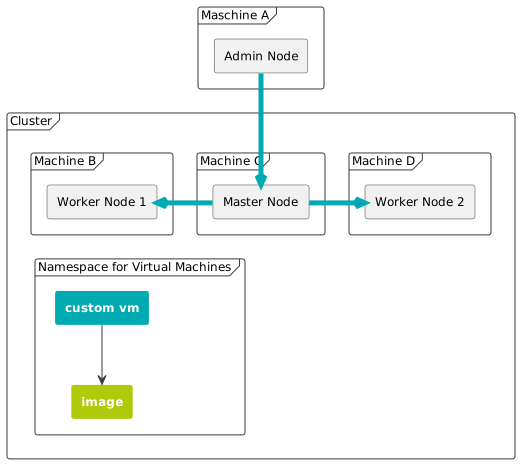
In the example shown, the custom VM is accessed via the master node**, Worker Node 1**, or Worker Node 2.
A KubeOps virtual machine is not exposed by default and therefore cannot be accessed remotely by the admin node.
Step 1 - Identify your Virtual Machine
Log in to the master or worker machine.
Most kubeops software requires root privileges. Switch to the root user.
sudo -i
Identify your virtual machine by running the kubectl get vmi command.
kubectl get vmi -A
This command lists all virtual machine instances. Choose the IP of the desired virtual machine.
NAMESPACE   NAME         AGE   PHASE     IP              NODENAME       READY

kubevirt    [CUSTOMVM-1]   22h   Running   [192.168.16.XXX]   stackedadmin   True
kubevirt    [CUSTOMVM-2]   22h   Running   [192.168.16.YYY]   stackedadmin   True
Step 2 - Access the Virtual Machine
Log in to the example VM remotely (e.g. using ssh). Use the IP address from the previous step. Use the credentials of the image.
Replace [USERNAME] and [IP-ADDRESS] accordingly.
ssh [USERNAME]@[IP-ADDRESS]
Step 1 - Create a Service forwarding the SSH port of the VM
The following YAML defines a Kubernetes Service that forwards the SSH port of your VM to the spec.ports.nodePort value.
The Service connects to your VM by using the selector, so make sure that the given label matches the one of your VM. Store it in a local YAML file serviceforwarding.yaml
apiVersion:v1kind:Servicemetadata:name:vm-ssh-forwardingnamespace:kubevirtspec:type:NodePortports:- port:22nodePort:30226targetPort:22protocol:TCPselector:kubevirt.io/vm:customvm# Binds directly to the underlying VM pod
Apply the Service with the following command:
kubectl apply -f serviceforwarding.yaml
To verify that the Service is connected to your VM, check the Endpoints resource in your Kubernetes cluster. The output should look similar to this:
NAME                ENDPOINTS          AGE
vm-ssh-forwarding   10.244.138.61:22   5d23h
Step 2 - Access the Custom VM
You can access the custom VM remotely from any host that has network access to the cluster machines, for example by using ssh.
Log in to the machine.
Identify the IP address of your custom VM by using the kubectl get vmi command.
kubectl get vmi -A
This command lists all virtual machine instances. Since we only have one VM installed, the output looks similar to this:
NAMESPACE   NAME         AGE   PHASE     IP              NODENAME       READY

kubevirt    example-vm   22h   Running   192.168.16.48   stackedadmin   True
To connect to the example VM remotely using ssh, use the IP address of a cluster node because the Service type is NodePort. In this example, the master node IP address is used. Also use the credentials of the running cirros image.
ssh [vm user]@[your master1 ip] -p 30226# this port must match the one defined in your service
4 - How to create a ContainerDisk from a local image
This guide describes how to create a ContainerDisk from a local image.
Note
This feature requires a Compliance enterprise license.
KubeVirt supports multiple ways of using images to create virtual machines. One of the most convenient methods is using the ContainerDisk feature, which allows VM disks to be stored and distributed as container images through a registry.
To create a ContainerDisk, users can simply inject the image into a container in qcow2 or raw format. The container should be based on scratch and the images must be placed into the /disk directory. No other content is required.
The following Dockerfile builds a ContainerDisk, which you can store in a OCI registry such as harbor or the Docker Hub:
FROM kubevirt/container-disk-v1alpha
ADD <your Image>.qcow2 /disk
You can the build the OCI arteiact with the command:
podman build . -t
Note: The ContainerDisk must be readable by the user with the UID 107 (qemu).
If you want to access the virtual machine, it is recommended to use a SSH key in the userdata startup section of your YAML file:
5 - How to import a VM from vSphere and deploy it in a Cluster using KubeVirt
This guide describes how to import a VM from vSphere, convert it to qcow2 format, create a ContainerDisk, and deploy it inside a Kubernetes cluster using KubeVirt.
Note
This guide requires a Compliance enterprise license.
How to Import a VM from vSphere and Deploy it in a Cluster using KubeVirt
This guide outlines the steps to export a virtual machine from vSphere, convert it to the qcow2 format, and deploy it inside a Kubernetes cluster using KubeVirt.
Requirements
To follow these steps, ensure you have:
A VM in the vSphere environment.
A Kubernetes cluster with KubeVirt installed.
Access to a container registry to store the VM image.
Step 1 - Export OVF Template from vSphere
In vSphere, locate the VM you want to export.
Ensure the VM is powered off before exporting.
Right-click the VM, navigate to Template, and select Export OVF Template.
Provide a name for the exported template and click OK.
The export process will generate three files: *.vmdk, *.nvram, and *.ovf.
Only the *.vmdk file is required for further processing.
Step 2 - Convert the VMDK File to QCOW2 Format
KubeVirt requires disk images in qcow2 format. Use the qemu-img tool to convert the .vmdk file:
apiVersion:kubevirt.io/v1kind:VirtualMachinemetadata:labels:kubevirt.io/vm:sk2-master01name:sk2-master01-vmnamespace:kubevirt-vms-importspec:runStrategy:Alwaystemplate:metadata:labels:kubevirt.io/vm:sk2-master01spec:domain:devices:disks:- name:datavolumediskdisk:bus:virtio- name:cloudinitvolumedisk:bus:virtioresources:requests:memory:4092Mvolumes:- name:datavolumediskdataVolume:name:sk2-master01-dv- name:cloudinitvolumecloudInitNoCloud:userData:|- #cloud-config
chpasswd:
list: |
expire: False
ssh_pwauth: True
disable_root: falsedataVolumeTemplates:- metadata:name:sk2-master01-dvspec:storage:resources:requests:storage:68GistorageClassName:rook-cephfsaccessModes:- ReadWriteManysource:registry:url:"docker://registry.kubeops.net/kubeops-vm/kubeops/kubevirt/sk2_master01_export:1.0.0"# (change the url to the image you want to deploy)secretRef:kubeops-vm-sec
kubectl apply -f filename.yaml
Step 5 - Verify Deployment
Run the following commands to check if the VM is deployed successfully:
kubectl get dv -n kubevirt-vms-import

kubectl get vmi -n kubevirt-vms-import
Ensure that the DataVolume is successfully downloaded and the VirtualMachineInstance is running.
6 - How to Monitor KubeVirt in Grafana
This guide describes How to monitor KubeVirt in Grafana.
Note
This guide requires a Compliance enterprise license.
Monitor KubeVirt VMIs with Grafana and Prometheus
This guide explains how to monitor KubeVirt Virtual Machine Instances (VMIs) using Grafana and Prometheus. By the end of this guide, you will have a Grafana dashboard that displays metrics related to KubeVirt VMIs.
Prerequisites
A running multi-node Kubernetes cluster with KubeVirt installed
⚠️ Note: Single-node clusters are not supported due to component scheduling and storage limitations.
A functional storage provider (e.g., Rook-Ceph or any other CSI-compatible solution) must be installed and available
⚠️ Required for deploying both Prometheus and Grafana, as they rely on PersistentVolumeClaims (PVCs)
Prometheus deployed in the cluster
Grafana installed and configured to connect to Prometheus
Step 1: Ensure Prometheus is Collecting KubeVirt Metrics
KubeVirt exposes various metrics that Prometheus can scrape. These metrics are documented here: KubeVirt Metrics.
To check whether Prometheus is collecting KubeVirt metrics:
Open the Prometheus Dashboard
Search for KubeVirt-related metrics, for example kubevirt_vmi_memory_available_bytes.
If no metrics appear, ensure the KubeVirt servicemonitor has been added to Prometheus:
Note: You can view query output in the Prometheus dashboard.
Conclusion
You have successfully set up Grafana to monitor KubeVirt VMIs using Prometheus. You can now track VMI performance and resource usage effectively.
7 - How to create L3 networking for VMs
This guide helps to create L3 networking for VMs
Note
This guide requires a Compliance enterprise license.
This guide explains how to configure L3 networking for KubeVirt virtual machines (VMs) using Multus. With this setup, VMs can communicate across nodes through dedicated secondary networks, which improves network segmentation and deployment flexibility in Kubernetes environments.
Prerequisites
Before you begin, ensure that the following requirements are met:
A running Kubernetes cluster
kubectl command-line tool configured to connect to your cluster
Calico and Multus installed and configured
KOSI is installed and authenticated successfully
Configuring Node Networking using Network Manager State (NMState)
Network Manager State (nmstate) is a declarative network configuration tool for Linux. It provides an API and CLI to manage network settings in a structured, state-driven manner.
In Kubernetes, nmstate is often used with NodeNetworkConfigurationPolicy (NNCP) to configure node networking dynamically, allowing for changes such as setting up VLANs, bridges, bonds, and other networking features.
Create an nncp-values.yaml file to define network configurations dynamically, including bridges and routes:
# nncp-values.yamlnamespace:"nmstate"nodes:- nodeName:cluster1master1nodeIP:10.2.10.11bridgeIP:10.10.1.1# bridge IP for cluster1master1.bridgeSubnet:10.10.1.0# `/24` subnet for bridgenodeInterface:ens192# use `ip a` or `ifconfig` to identify interface- nodeName:cluster1master2nodeIP:10.2.10.12bridgeIP:10.10.2.1bridgeSubnet:10.10.2.0nodeInterface:ens192- nodeName:cluster1worker1nodeIP:10.2.10.14bridgeIP:10.10.3.1bridgeSubnet:10.10.3.0nodeInterface:ens192- nodeName:cluster1worker2nodeIP:10.2.10.15bridgeIP:10.10.4.1bridgeSubnet:10.10.4.0nodeInterface:ens192
Note:
If you’re adding a new node, assign it a unique bridgeIP and bridgeSubnet, that follow the existing addressing pattern.
To set up L3 networking with Multus, each worker node requires a separate NetworkAttachmentDefinition (NAD) with a unique IP address and subnet matching the node’s network configuration. This allows isolated network environments for each pod, enabling multi-interface support on pods and communication between nodes in the cluster.
Plan the Network
Before creating the NADs, define the IP ranges and subnets for each worker node to avoid conflicts and routing conflicts.
Example IP range mapping for worker nodes:
Node
Subnet
Example IP for Pod
cluster1worker1
10.10.3.0/24
10.10.3.10
cluster1worker2
10.10.4.0/24
10.10.4.10
Example NAD Configuration for Worker Node 1
This example shows how to configure a NetworkAttachmentDefinition (NAD) for worker node 1 (cluster1worker1), with a static IP range assigned to its pods:
Verify the created Network Attachment Definition Objects
To ensure that the NetworkAttachmentDefinition (NAD) objects have been successfully created, run the following command:
kubectl get net-attach-def -A
Deploy Virtual Machines (VMs) and Attach the Secondary Networks
Once the NADs are created, you can deploy Virtual Machines (VMs) and attach them to the secondary networks. The following is an example Kubernetes manifest for deploying a VM with a secondary network interface attached.
Network Selection from NADs
Each VM must be connected to the correct network defined by the NetworkAttachmentDefinition (NAD) for its corresponding node. For example, if you have created a NAD for cluster1worker1 named secondary-network-node1, ensure that the VM manifest refers to this network in the annotations section and correctly links to the networkName under the multus configuration.
Ensure that the network name in the manifest matches the NAD definition.
Create Image Pull Secret
Please create a secret for pulling image from registry.kubeops.net.
The following is an example Kubernetes manifest for deploying a VM with a secondary network interface attached to a specific NAD:
# vm1.yamlapiVersion:kubevirt.io/v1kind:VirtualMachinemetadata:name:"ubuntu-vm"namespace:"l3-networking"annotations:k8s.v1.cni.cncf.io/networks:secondary-network-node1# Ensure this matches the NAD network namespec:nodeSelector:kubernetes.io/hostname:cluster1worker1# edit for scheduling node on other noderunStrategy:Alwaystemplate:metadata:labels:kubevirt.io/size:smallspec:domain:cpu:cores:1devices:disks:- name:containervolumedisk:bus:virtio- name:cloudinitvolumedisk:bus:virtiointerfaces:- name:defaultmasquerade:{}- name:secondary-networkbridge:{}resources:requests:memory:2048Mnetworks:- name:defaultpod:{}- name:secondary-networkmultus:networkName:secondary-network-node1# Ensure this matches the NAD network namevolumes:- name:containervolumecontainerDisk:image:registry.kubeops.net/kubeops-vm/kubeops/ubuntu-cloudimg-focal:2.0.1imagePullSecret:kubeops-vmimagePullPolicy:Always- name:cloudinitvolumecloudInitNoCloud:userData:|- #cloud-config
chpasswd:
list: |
ubuntu:ubuntu
root:toor
expire: False
ssh_pwauth: True
disable_root: false
Apply the VM Manifest
Once the NetworkAttachmentDefinition (NAD) objects have been created, you can deploy the Virtual Machines (VMs) and apply the manifests. The following commands apply the VM manifests to your Kubernetes cluster.
After the VMs start successfully, verify that the secondary network interfaces and routes are configured correctly.
On each VM
1. Check the IP Address
First, check the IP address assigned to the pod (VM). This is crucial to ensure that the secondary network interface has been correctly assigned an IP.
kubectl exec -n <namespace> <pod-1> -- ip a
2. Assign IP Address if Not Automatically Assigned (Optional)
Verify the routing configuration on the VM to ensure that traffic can flow through the secondary network. Use the following command:
kubectl exec -n <namespace> <pod-1> -- ip r
This will display the routing table for the VM and confirm if the secondary network is correctly set up.
Verify VM Communication
After ensuring the network settings are correct, test the communication between VMs by pinging the secondary network IP of another pod.
Test Connectivity Between VMs
Use the ping command to check if the VMs can communicate over the secondary network. Replace <pod2_secondary_network_IP> with the actual IP address of the secondary network interface on the second VM.
If the ping is successful, it confirms that the VMs are able to communicate over the secondary network.
Additional Notes:
Ensure that you use the correct namespace and pod name while executing the commands.
Make sure the secondary network interface is correctly configured on each VM, and the IP address and routes are properly assigned.
If communication fails, check for issues in the NetworkAttachmentDefinition (NAD) configuration or verify that the correct CNI plugins are running.
8 - How to back up VMs and vm snapshots with Velero
This guide provides instructions on how to back up virtual machines and snapshots of the virtual machines of KubeVirt with Velero.
Overview
This guide describes how to configure Velero to back up and restore KubeVirt virtual machines in a Kubernetes cluster.
Velero stores backup data in an S3-compatible object storage backend. In this example, MinIO is used as the backup storage target.
Prerequisites
Note
This feature requires a Compliance enterprise license.
Before you begin, ensure that the following prerequisites are met:
A running Kubernetes cluster is available.
Rook-Ceph is configured as the storage provider.
An S3-compatible object storage service is available.( in this case MinIO)
A KubeVirt virtual machine is running in the cluster
In following example MinIO is used.
Step 1 - Configure Velero
Define the Velero configuration in your values file:
veleroValues:namespace:"velero"accessKeyId:"minio"secretAccessKey:"minio123"backupLocationConfig:s3Url:"http://10.2.10.110:30090"# nodeport of minio
Enable Velero in the kubeopsctl.yaml file :
velero:true
Apply the configuration:
kubeopsctl apply -f kubeopsctl.yaml
Step 2 - Verify S3 Bucket Access
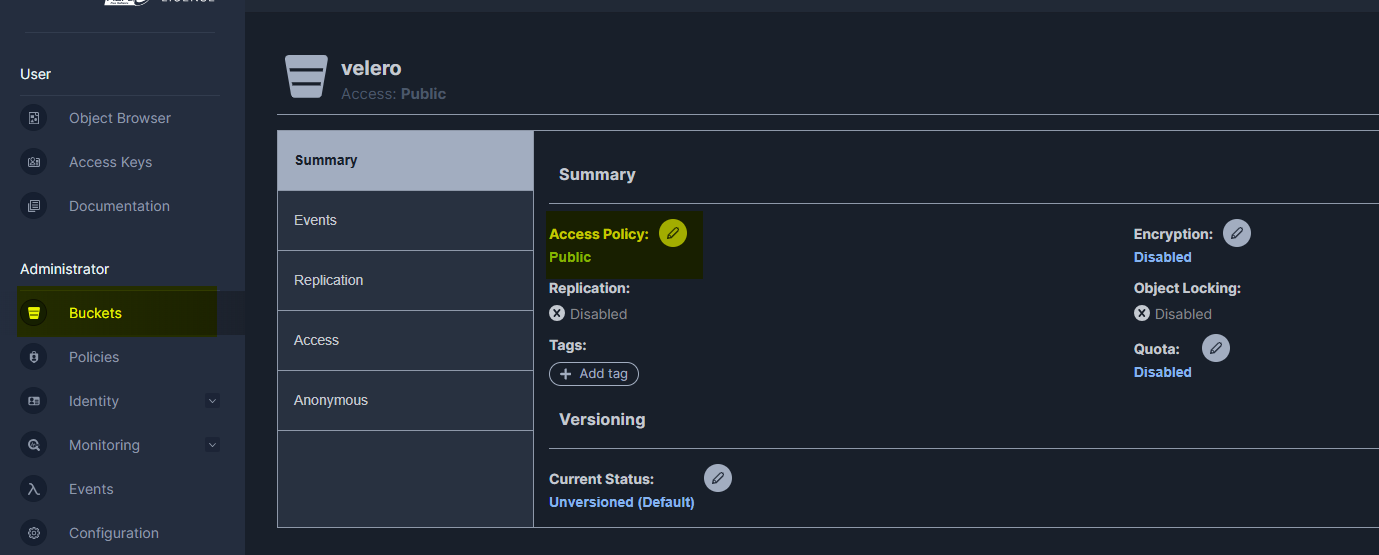
The bucket for Velero ( default Velero ) in the s3 storage should be accessible for Velero, so ensure that the bucket exists and that Velero has permission to write to it.
In this example, the bucket is configured so that Velero has write access:
Step 3 - Create a Backup
To create a backup of the namespace containing the KubeVirt virtual machine, run:
velero backup get
velero backup create kubeops-vm-backup --include-namespaces <Namespace of kubevirt vm>
Confirm that the backup completed successfully before proceeding.
Step 5 - Restore the Backup
To restore the backup, run:
velero restore get
velero restore create kubeops-vm-restore --from-backup kubeops-vm-backup
The restore name must be unique.
After the restore is complete, verify that the virtual machine resources have been recreated successfully in the target namespace.