Create a KOSI account (with SSO)
2 minute read
How to register an KubeOps account
Register account via Website
You can create an account on our website by scrolling to the bottom and clicking on the “login”-button.
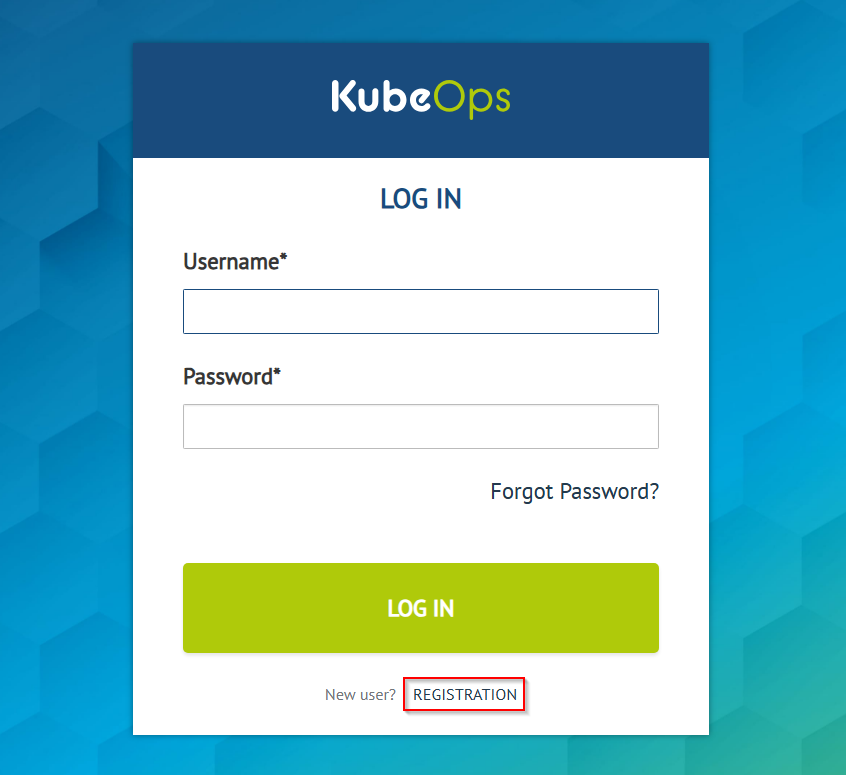
This will forward you to our login website:

On the bottom of the form, you can find the REGISTRATION-Button, where you can fill in your data and create an account.
Activate your account in order to use KOSI
After successful registration, you must log in once into the KubeOps-Registry. Once logged in, you can switch to KOSI and use it as normal.
(alternative) Register account via KubeOps-registry
You can register a user account by using the KubeOps-Registry page. Click on LOGIN WITH keycloak. You will be redirected to the SSO page where you can REGISTER a new user account.

Activate your account in order to use KOSI
After successful registration, you must log in once into the KubeOps-Registry. Once logged in, you can switch to KOSI and use it as normal.
How to manually push images in my KubeOps-Registry project space
To manually push container images into your KubeOps-Registry project space, you need to use your Harbor CLI secret for authentication when using podman.
How to get your CLI secret
-
Click on your username and select User Profile.

-
On the User Profile page, you can copy or change your CLI secret if needed.

Now you can push your image using the CLI secret:
podman login registry.kubeops.net -u <username> -p <CLI_secret>
Note: Replace
<username>with your KubeOps username and<CLI_secret>with your actual CLI secret.