Install KubeOps virtualization on a Dedicated Machine
Categories:
7 minute read
This guide describes how to set up a Kubernetes-based virtualization environment by using kubevirt automated installation routines. The setup is performed on a physical or virtual machine and runs largely automatically, requiring only minimal user input.
As part of the installation, KubeVirt and additional KubeOps components, such as the KOSI package manager, are installed automatically on the target node.
KubeVirt provides the virtualization layer within Kubernetes and enables virtual machines to run as Kubernetes-managed resources.
System architecture after installation
After the installation is complete, the environment consists of:
-a single-node Kubernetes cluster
- one running node functioning as both the control-plane and worker node
- one virtual machine
ubuntu vmrunning in the namespacekubevirt - one preconfigured
ubuntuimage running on that virtual machine
The ubuntu image includes predefined login credentials.
A virtual machine is not permanently bound to a specific machine. In Kubernetes-based virtualization environments, VM placement depends on resource availability and scheduling decisions within the cluster. KubeVirt manages this placement and execution automatically, so no manual intervention is required during normal operation.
This behavior supports flexible resource usage and allows workloads to operate independently of a fixed host system.
One of the main advantages of KubeOps virtualization is the asynchronous use and access of a VM and the deployment and execution of the VM depending on the available resources or machines. This allows virtual machines to be scheduled independently based on available cluster resources.
Requirements
Before you begin the installation, ensure that you have the credentials for the following accounts available:
- your KubeOps.net account
- your Red Hat Subscription Manager account
For more information about Red Hat Subscription Manager, see the Red Hat online documentation.
System Requirements
The ISO can be installed on either a physical machine or a virtual machine. Ensure that the target system meets the following minimum requirements.
The KubeOps-VM ISO is based on Red Hat Enterprise Linux (RHEL). Only RHEL 9.6 and 9.7 are supported.
| CPU | 4 cores |
| Memory | 8 GB |
| Disk space | 50 GB of unformatted, non-partitioned disk space |
Actual system requirements depend on the number and type of virtual machines that will run on the system.
In general, the more virtual machines you plan to run, the more disk space is required. Depending on the expected workload, increasing CPU and memory resources may also be necessary.
Step 1 - Download the KubeOps-VM ISO File
Download the ISO file from the following location:
https://kubeops.net/users-only/welcome.
Step 2 - Install the KubeOps-VM ISO
During installation, you will be prompted to provide configuration values. Follow the on-screen instructions and enter the required information.
- Boot your machine from the ISO.
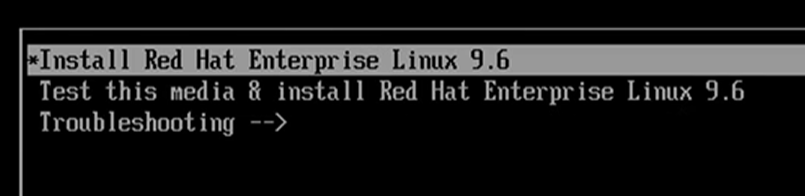
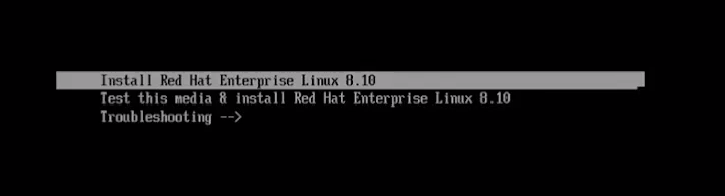
- Select Install Red Hat Enterprise to start the installation.
- Select the hard disk on which the system will be installed.

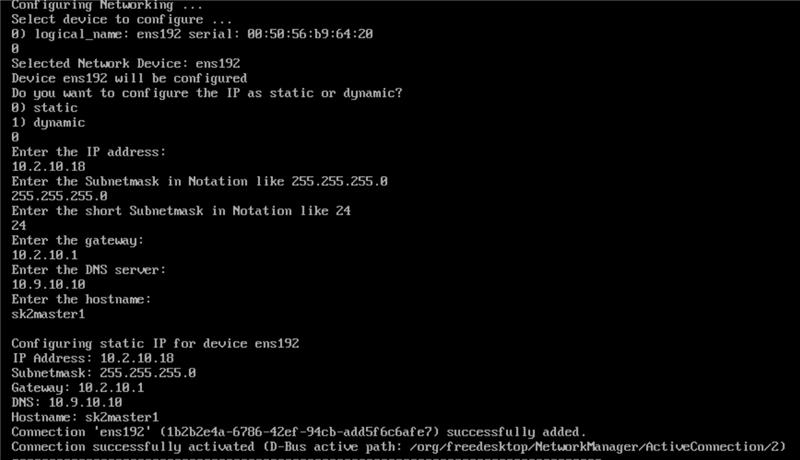
- Configure the network settings:
- Select your preferred networking device.
- Select whether the IP configuration is dynamic or static.
- Enter the IP address.
- Enter the subnet mask address.
- Enter the gateway address.
- Enter the DNS server address.
- Enter your preferred hostname. This will be the name of the machine. ( Do not use special characters in the hostname.)
- Select your preferred activation method for the Red Hat Subscription Manager.
- Select your preferred security method for the GRUB bootloader.
We recommend the option “random password” - this will set up the security automatically. For more information about the GRUB bootloader and its security, refer to the respective documentation. - Enter your KubeOps.net account credentials.
Notice The setup process may take several minutes. Do not shut down the machine while the installation is in progress.

- Follow the remaining on-screen instructions to complete the installation.
Step 3 - Login to the Control-plane Node on the Cluster
During setup using an ISO file, the control-plane node was automatically preconfigured with a user (root) and its password.
| User | ko-admin |
| Password | KubeOps2024 |
- Log in to the control-plane node remotely.
For example, usingssh. The first time you log in, you must use the preconfigured password (see above). Use the hostname or the IP address that you assigned in a previous step during the installation.
ssh ko-admin@[HOSTNAME]
or
ssh ko-admin@[IP ADDRESS]
-
At first login, you will be prompted to change the default password. ollow the on-screen instructions. After the password change is complete, you will be automatically logged out.
Notice During the first boot of the machine, additional software and parameters are configured in the background, such as the cluster setup and configuration. -
Login to the machine again using your new credentials.
-
Most kubeops software require root privileges. Switch to root user.
sudo -i
- To check the state of background configuration tasks, run the
journalctlcommand.
journalctl -u clustersetup.service
Keep this view open while the installation finishes.
Check your kubeops virtualization by using the kubectl get pods command.
kubectl get pods -n kubevirt
The installation is complete when the status of all pods is set to “Running”. For example:
Note: Pods in the
kubevirtnamespace may initially remain in thePendingstate. If this happens, you can either add worker nodes as described in How to join Nodes to a KubeOps Cluster or or remove the control-plane taint from the single node withkubectl taint nodes <control-plane-node-name> node-role.kubernetes.io/control-plane:NoSchedule-

- To change the password of the root user, run command:
passwd
Step 4 - Install the example VM
After the platform installation is complete, you can deploy the example virtual machine.
- Login to the machine using your updated credentials.
- Switch to root user as most kubeops software needs root privileges.
sudo -i
- Create a values file for the virtual machines:
Example:
ubuntuvmValues:
  name: ubuntu-vm
  namespace: kubevirt-vm
  sshkeys:
    - key: <public ssh key, p.e. id_rsa.pub file>
  dataVolume:
    storageClassName: rook-cephfs
    source:
      secret: kubeops-auth
In this example,these values are saved in the vmvalues.yaml file.
- Ensure that you are still logged in to KOSI using your kosi username. KOSI sessions remain valid for 24 hours, after that time you need to login again.
kosi login -u [USERNAME]
- Use the KOSI package manager to search for available software packages.
In this case, we restrict the search to KubeOps virtualization using the hub
kubeops-vmand filter forubuntu.
kosi search --hub kubeops-vm --ps ubuntu

- Install the package using the
kosi installcommand. The example VM configuration is namedkubevirt-ubuntu-vm
kosi install --hub kubeops-vm kubeops/kubevirt-ubuntu-vm:1.0.0 -f vmvalues.yaml --dname ubuntu
Create the required secret
Create a custom secret for image access:
kubectl create secret generic kubeops-auth --from-literal=accessKeyId=<kubeopsaccount> --from-literal=secretKey="<password-token for imagepullregistry>" --namespace=<namespace of vm>
Note: The image pull token is not the same as the account password. If the registry uses OIDC integration, for example with Keycloak, use the appropriate token instead of the user password.
Additional requirements for air-gapped environments
For an airgap installation,
- Use a domain name for Harbor.
- Do not use an IP address with a port
- Do not manually copy images to the nodes or load them with containerd
- Ensure that all required images are available through the configured registry
You may also need to create an image pull secret named kubeops-vm. This secret uses the same registry credentials as the kubeops-auth secret created by the KubeOps platform tool, like rook-ceph.
You can create it with the following command:
kubectl -n kubevirt create secret docker-registry kubeops-vm --docker-server=<registry for image pulling> --docker-username=<username of registry> --docker-password=<password-token for imagepullregistry>
Step 5 - Access the example virtual machine
After deployment, you can access the example virtual machine remotely from the control-plane node. For example, using ssh.
- Login to the machine using your updated credentials.
- Retrieve the IP address of your example VM with following command:
kubectl get vmi -A
This command lists all virtual machine instances. Since we only have one VM installed, the output looks something like this.
NAMESPACE   NAME         AGE   PHASE     IP              NODENAME       READY

kubevirt    ubuntu-vm   22h   Running   192.168.16.48   stackedadmin   True
- Log in to the example VM remotely (e.g. using
ssh). Use the IP address from the previous step. Use the credentials of the runningubuntu imagefrom the table below.
ssh ubuntu@192.168.16.48
| User (ubuntu image) | ubuntu |
| Password (ubuntu image) | ubuntu |
Next Steps
For additional commands and operational tasks for KubeOps virtual machines, see Commandline Operations.