Set up a Basic Cluster
8 minute read
In this quickstart you will learn about:
- kubeopctl plattform requirements
- best practices for machine setup
- setup secure headless environment for communication between admin and all masters / workers
- how to install required software
- how to use the official KubeOps Website to download kubeopsctl
- how to create a basic cluster
After the installation, kubeopctl is available as command line interface.
Prerequisites
To get the most out of this guide, the following requirements should be met:
- basic understanding of Linux environments, bash / shell
- basic understanding of text editors, vi / nano
- administrator privileges (root) are granted
A total of 7 machines (virtual or physical) are required and need to be set up:
- one admin - control plane, this machine will manage all tasks on the cluster and integrated machines
- three masters
- three workers
The final cluster will have the following structure. Masters and workers are added to two clusters zones.
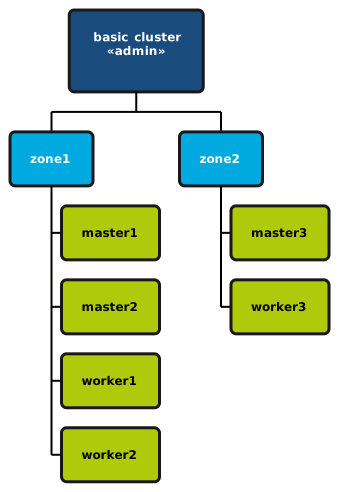
Step 1 - Minimal Platform Requirements
kubeopsctl is designed to work with the latest versions of the following operating systems.
Supported Operating Systems
| Operating system | Red Hat Enterprise Linux (Version 8.2 or newer) |
System requirements Admin Nodes
| CPU | 2x |
| Memory | 2 GB |
| Diskspace | 50 GB |
| Internet Access | Yes to use default KubeOps Registry |
Important: Choose the correct KubeOps Registry based on your version:
"registry1.kubernative.net/lima""registry.kubeops.net"
System requirements Master Nodes
| CPU | 4x |
| Memory | 8 GB |
| Diskspace | 50 GB |
System requirements Worker Nodes
| CPU | 8x |
| Memory | 16 GB |
| Diskspace | 50 GB 50 GB unformatted non-partitioned disk storage for ceph |
By default Red Hat Enterprise Linux restricts package management such as installing or updating. Before installing any software, you may need to register and subscribe with the Red Hat Customer Portal.
To register and subscribe, run the command subscription-manager register.
For more information about rook-ceph, see the prerequisites in its official documentation.
If a node fails, the minimum requirements may not be sufficient to guarantee trouble-free operation.
Step 2 - Set up your Machines
You can setup the admin, master and worker nodes as virtual or as physical machines.
During the setup of the machines, make sure that you meet the following requirements:
- heed the platform requirements as mentioned above
- all machines need to be synchronized with the current time
- all machines need to be within the same network environment
During the setup, note the IP addresses of all machines.
Assign unique hostnames for each machine (lowercase letters and numbers only).
We recommended using self-explanatory hostnames (see example table below).
To get the most out of this guide, use the following hostnames for your basic cluster:
Hostnames
| Machine / Purpose | Hostnames |
|---|---|
| Admin | admin |
| Masters | master1 master2 master3 |
| Workers | worker1 worker2 worker3 |
Assigning Hostnames manually
If you need to assign hostnames manually, login to the machine and use the hostnamectl set-hostname command.
hostnamectl set-hostname master1
Repeat this process for all machines where necessary.
Remove firewalld on Red Hat Enterprise Linux 8
If you are using Red Hat Enterprise Linux 8, you must remove firewalld. Kubeopsctl installs nftables by default.
You can use the following commands to remove firewalld:
systemctl disable --now firewalld
systemctl mask firewalld
dnf remove -y firewalld
reboot
Step 3 - Set up Access for the Admin Machine
The admin machine needs secure and headless access to all other machines.
Set up IP Addresses for DNS
It is recommended, that a DNS service is running. If you do not have a DNS service, you need to edit the /etc/hosts file on the admin machine.
Add the following lines at the end of the /etc/hosts file. Replace the IP addresses with the actual addresses you noted during the setup of all machines. Replace the hostnames with the actual hostnames you assigned during the setup of all machines:
10.2.10.10 admin
10.2.10.11 master1
10.2.10.12 master2
10.2.10.13 master3
10.2.10.14 worker1
10.2.10.15 worker2
10.2.10.16 worker3
Set up Secure Access
To securely access the master and worker machines, you need to create a ssh-key-pair (private and public key) on the admin machine. Afterwards copy the public key onto each machine.
To learn more about ssh and key-pairs see our guide on How to set up SSH keys.
Step 4 - Install Podman on the Admin Machine
To ensure compatibility across different containerized environments, kubeopsctl requires the installation of Podman (latest version).
containerd, so it is recommended that containerd.io is removed before installing the podman package.
Install Podman on the admin machine using the inbuilt package manager.
sudo dnf install -y podman
you need to install jq for rook-ceph:
dnf install -y jq
also you need to login to systemd with your os user:
loginctl enable-linger myuser
By default, kubeopsctl only supports secure registries.
To setup kubeopsctl with insecure registries, see here.
Step 5 - Install kubeopsctl on the Admin Machine
With everything prepared, the next step is to download and install kubeopsctl on the admin machine.
Downloading KOSI
Login into your KubeOps account. If you do not already have an account, you can create it by using the KubeOps website.
Download your desired version of the kubeopsctl package file (.rpm) from the official download page onto the admin machine.
-
Installing KOSI
sudo dnf install -y <path>/<kosi_rpm> -
Login to the kubeops hub using kosi
After you input the password, you will gain access to the kubeops hub. Use the following command to begin the login process:
kosi login -u <user>
Installing kubeopsctl
Install kubeopsctl using the inbuilt package manager. Replace <path> and <kubeopsctl_rpm> with the respective path and file name of the kubeopsctl package file.
On installation, kubeopsctl will perform all necessary steps to setup the environment in dependence of your used operating system. This includes the automatic installation / deinstallation of additional software or packages.
Removes software:
runc
Installs Software:
tc,libnftnliproute2,libnftnl
To install kubeopsctl use the following command.
sudo dnf install -y <path>/<kubeopsctl_rpm>
Create Work Folders and Setup Environment Variables
After the setup, you need to create work folders where kubeopsctl can save and manage configurations and other settings.
mkdir -p ~/kubeops
mkdir -p ~/kubeops/lima
To work comfortably, you need to assign these folders to the predefined environment variables KUBEOPSROOT and LIMAROOT.
echo 'export KUBEOPSROOT="${HOME}/kubeops"' >> $HOME/.bashrc
echo 'export LIMAROOT="${HOME}/kubeops/lima"' >> $HOME/.bashrc
source $HOME/.bashrc
Verify your Installation
To verify the installation of kubeopsctl on your system, use the command kubeopsctl version.
kubeopsctl version
Step 6 - Configure the Basic Cluster
With everything ready to start, the next step is to configure the cluster.
For configurations, kubeopsctl uses the YAML format.
Use an editor to create and edit the configuration file:
nano ~/basicCluster.yml
Copy and paste all lines into the file. You need to edit specific parameters according to the assigned IP addresses, hostnames etc.:
master/name- set all master hostnamesmaster/ipAdress- set all master IP addressesworker/name- set all worker hostnamesworker/ipAdress- set all worker IP addresses
apiVersion: kubeops/kubeopsctl/alpha/v5 # mandatory
imagePullRegistry: "registry1.kubernative.net/lima"
localRegistry: true
clusterName: "example"
kubernetesVersion: "1.30.0"
masterIP: 10.2.10.11
systemCpu: "200m"
systemMemory: "200Mi"

zones:
  - name: zone1
    nodes:
      master:
        - name: master1
          ipAdress: 10.2.10.11
          status: active
          kubeversion: 1.30.0
        - name: master2
          ipAdress: 10.2.10.12
          status: active
          kubeversion: 1.30.0
      worker:
        - name: worker1
          ipAdress: 10.2.10.14
          status: active
          kubeversion: 1.30.0
        - name: worker2
          ipAdress: 10.2.10.15
          status: active
          kubeversion: 1.30.0
  - name: zone2
    nodes:
      master:
        - name: master3
          ipAdress: 10.2.10.13
          status: active
          kubeversion: 1.30.0
      worker:
        - name: worker3
          ipAdress: 10.2.10.16
          status: active
          kubeversion: 1.30.0


# mandatory, set to true if you want to install it into your cluster
rook-ceph: true
harbor: true
opensearch: true
opensearch-dashboards: true
logstash: true
filebeat: true
prometheus: true
opa: true
kubeops-dashboard: true
certman: true
ingress: true
keycloak: true
velero: true

harborValues:
  harborpass: "password" # change to your desired password
  databasePassword: "Postgres_Password" # change to your desired password
  redisPassword: "Redis_Password"
  externalURL: http://10.2.10.11:30002 # change to ip adress of master1

prometheusValues:
  grafanaUsername: "user"
  grafanaPassword: "password"

ingressValues:
  externalIPs: []

keycloakValues:
  keycloak:
    auth:
      adminUser: admin
      adminPassword: admin
  postgresql:
    auth:
      postgresPassword: ""
      username: bn_keycloak
      password: ""
      database: bitnami_keycloak
      existingSecret: ""

veleroValues:
  accessKeyId: "your_s3_storage_username"
  secretAccessKey: "your_s3_storage_password"
apiVersion: kubeops/kubeopsctl/alpha/v5 # mandatory
imagePullRegistry: "registry.kubeops.net"
localRegistry: true
clusterName: "example"
kubernetesVersion: "1.30.0"
masterIP: 10.2.10.11
systemCpu: "200m"
systemMemory: "200Mi"

zones:
  - name: zone1
    nodes:
      master:
        - name: master1
          ipAdress: 10.2.10.11
          status: active
          kubeversion: 1.30.0
        - name: master2
          ipAdress: 10.2.10.12
          status: active
          kubeversion: 1.30.0
      worker:
        - name: worker1
          ipAdress: 10.2.10.14
          status: active
          kubeversion: 1.30.0
        - name: worker2
          ipAdress: 10.2.10.15
          status: active
          kubeversion: 1.30.0
  - name: zone2
    nodes:
      master:
        - name: master3
          ipAdress: 10.2.10.13
          status: active
          kubeversion: 1.30.0
      worker:
        - name: worker3
          ipAdress: 10.2.10.16
          status: active
          kubeversion: 1.30.0


# mandatory, set to true if you want to install it into your cluster
rook-ceph: true
harbor: true
opensearch: true
opensearch-dashboards: true
logstash: true
filebeat: true
prometheus: true
opa: true
kubeops-dashboard: true
certman: true
ingress: true
keycloak: true
velero: true

harborValues:
  harborpass: "password" # change to your desired password
  databasePassword: "Postgres_Password" # change to your desired password
  redisPassword: "Redis_Password"
  externalURL: http://10.2.10.11:30002 # change to ip adress of master1

prometheusValues:
  grafanaUsername: "user"
  grafanaPassword: "password"

ingressValues:
  externalIPs: []

keycloakValues:
  keycloak:
    auth:
      adminUser: admin
      adminPassword: admin
  postgresql:
    auth:
      postgresUserPassword: ""
      username: bn_keycloak
      password: ""
      database: bitnami_keycloak
    volumeSize: 8Gi

veleroValues:
  accessKeyId: "your_s3_storage_username"
  secretAccessKey: "your_s3_storage_password"
Step 7 - Start the Basic Cluster
After the configuration is setup correctly, you can start your basic cluster for the first time:
kubeopsctl apply -f ~/basicCluster.yml